Introduction
Once you suspect that there is a virus in your Windows computer, you need to act quickly. Viruses may corrupt your contents, bring your system through the mud, and leak your personal details. Such threats may be of diverse types, including malware, spyware, ransomware, and trojans. The vast majority of users do not pay attention even to such warning signs as low performance or pop-ups that appear at the wrong time. That is where the actual harm starts.
The most popular operating system, Windows, is prone to attack. Therefore, comprehending how to manage this scenario is essential. Viruses do not come by chance. What causes them includes risky downloads, malicious sites, or USB contamination. One has to remain aware of the subsequent course of action. Any form of delaying action may fail the entire system or loss of data.
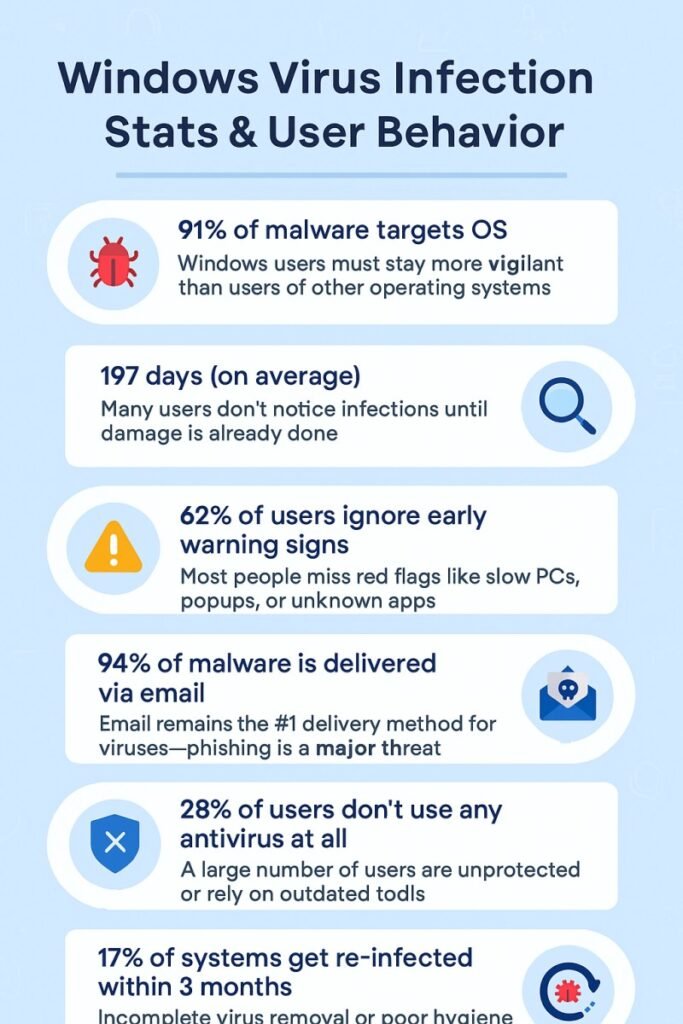
Windows Virus Infection Stats & User Behavior
| Statistical Insight | Data / Percentage | Source / Year | What It Means |
|---|---|---|---|
| 💻 Windows is the most targeted OS | 91% of malware targets Windows systems | AV-Test, 2023 | Windows users must stay more vigilant than users of other operating systems. |
| 🕵️♂️ Average time to detect a virus | 197 days (on average) | IBM X-Force, 2023 | Many users don’t notice infections until damage is already done. |
| 🧪 Common virus symptoms ignored | 62% of users ignore early warning signs | Microsoft Security Report, 2022 | Most people miss red flags like slow PCs, popups, or unknown apps. |
| 🔄 Infected systems from email links | 94% of malware is delivered via email | Verizon DBIR, 2023 | Email remains the #1 delivery method for viruses — phishing is a major threat. |
| 🔐 Users without antivirus | 28% of users don’t use any antivirus at all | Statista, 2023 | A large number of users are unprotected or rely on outdated tools. |
| 🔄 Repeated infection after removal | 17% of systems get re-infected within 3 months | Sophos Labs, 2022 | Incomplete virus removal or poor hygiene leads to recurring issues. |
Identification of the Early Warning Signs
Among the initial activities you have to do when you think your Windows computer is infected with a virus is look out for the red flags. These are, opening of programs automatically, unusual behavior of your browser, or the starting of the system at random. There are cases when the antivirus program fails to operate, or the error messages make sense. The task manager can display unfamiliar processes that use up memory.
This is not healthy behavior. Your device can even heat up fast. The other usual indication is the slowness of loading files and folders. The following symptoms serve as evidence of the existence of malicious software. Take note when abnormal activities result in increased consumption of data services of your internet connection. Eerie messages delivered using your email are another matter of concern.
Internet shutdown to promote Safety

A good move to make at the first issue of suspicion of a virus in your Windows computer is to disconnect it from the internet. This is simply because most viruses are made to interface with distant servers. They upload stolen information or download other malicious files. Leaving your equipment online will enable the virus to either propagate or become more malicious.
When you go offline, it restricts the movements of the virus to execute further destruction. Deactivate Wi-Fi or take out your Ethernet. This action does not eliminate the virus; however, it stops the virus. When you are on cloud services, you also avoid synchronizing infected files with additional devices. Removing your computer from the network puts you in control.
Before Scanning and Backing Up Important Files
First, consider backing up valuable files before implementing any form of aggression. When there is a suspicion of a virus in your Windows machine, time is of the essence, and so is your data. Then use an outside source, either a virtual cloud service or an unhacked outside drive. Do not transfer program files or applications. Keep it confined to documents, pics, and videos.
This move will save your vital files if the virus intensifies. Pre-cleaning and deep cleaning should be precautionary. Never backup corrupted or suspicious files. That may recall the virus subsequently. Before making any copy, consult a professional just in case you do not know what you are copying. Staying on the safe side is more convenient than losing your files once and for all.
Using a Full System Antivirus Check
Having made sure that your information is secure, now you can proceed to scan the device. A deep antivirus scan is your best friend when you are suspicious of a virus on your Windows PC. You need to ensure that your antivirus definitions are current. Otherwise, connect briefly in order to update them, and disconnect once again. Select the full-scan but not a fast one. This scans each file in detail and each folder. Allow the software to do its own thing.
The scan might even last hours sometimes, but it is essential. In case threats are located, leave the antivirus to isolate them or remove them. Never neglect the warnings or alerts. Upon having a clean report, you are not necessarily safe. Conduct a backup opinion using a second opinion scanner.
The effective use of Windows Security Tools
Windows has built-in tools that can assist. Go to Windows Security when you suspect a virus on your Windows computer. It has virus and threat protection, a firewall, and device performance insights. Windows Defender allows making fast and complete scans. When the virus is difficult to scan while Windows is running, then an offline scan is a better option. This special feature reboots your system and searches prior to the proper loading of the OS.
The Windows Event Viewer is yet another useful feature. It is able to indicate abnormal system activity. In addition, you need to check the task manager to see the unwanted startup programs. By disabling them, it is possible to prevent the virus from running on boot. Native tools also make sure that your system is scanned without the installation of third-party applications.
Looking At Installed Programs and Extensions
It is unusual for apps that be signs of infections. Whenever you have a feeling that you may have a virus in your Windows computer, check your installed programs. Visit Control Panel or Settings, and check the newly installed or unknown software. Abandon anything that is suspicious. Equally, malware can be found in browser extensions. Go to your web browser and look at all the add-ons. Turn off or remove something you do not know. Most adware viruses are incorporated into being looked upon as useful extensions. Pay attention to uninstallation.
Instead, some of the programs will make an effort to re-install themselves. That is a hefty symptom of malware. Once removed re-boot your computer and once again check. Clear browsers by altering them back to default settings. This removes malicious preferences such as homepages or search engines which malware programs frequently alter.
The updates of Windows and installed software
Patching is important. When you suspect your Windows computer has a virus, it is important that you update your system. Usually, there are viruses that use old software to gain access to your system. Open settings and get any available Windows updates installed. Make sure that your browsers, antivirus, as well as major applications are updated. No neglect of updates on the driver. All the updated elements block known weaknesses. In many cases, infected systems are outdated.
This is deliberate since there are cases of malware that block automatic updating. Some of the security holes can be fixed by reactivating and updating. It further increases your security against future attacks. Reboot your PC when updates are done. It makes sure that it uses all patches. It is more difficult to infect a well-maintained system.
Looking at Professional Support in the case of Severe Infections
In some instances, DIY fails. In case you doubt that your Windows computer has a virus, seek to have it checked by a professional. Malware or advanced infections, such as rootkits or ransomware malware, need dedicated tools. Cybersecurity masters can use sophisticated software and expertise. They are capable of cleaning your system without the destruction of your files. When you have sensitive or business information in your computer, then the safest path would be to use professional assistance. Do not risk experimenting which can lead to further corruption.
Call a reliable IT service or a certified technician. They may as well be able to recommend long-term solutions. These are the enhancements of an antivirus software, firewalls, or the updating of a system. Seeking professional assistance also guarantees one tranquility. This is especially when the system is acting in an abnormal way despite a scan being carried out.
Windows Reinstall or reset as the Final Solution

In case everything fails, you might be required to reset your PC. And that the last step is a reset of the computer when the scans did not solve the problem, and you think there is a virus in the Windows computer. Windows gives you a choice to reinstall the operating system without preserving your files or with them. Choose wisely.
A clean install is more secure, yet it clears all the stuff off. Before starting, ensure you do backups. Go to the settings and hit the reset this PC. This deletes apps and reconfigures the system. Once reinstalled, you do not need to restore all files at once. Scan first to make sure they are all clean. Clean and install the current software and powerful antivirus software.
Summary and Proactive Protection Plans
These actions you can perform when you suspect your system (Windows computer) of a virus can rescue your system and files. Such fast measures as disconnecting the Internet, deep scanning, and inspection of dubious software are a huge contribution. Some changes should be made after making backups. Use Windows tools ready to use.
Do not disregard updates or fail-safe computer behavior. After cleaning your system, tighten the security. Put a reliable antivirus and firewalls enabled and do not download content in insecure sites. Learn how to avoid phishing and proper browsing. Constant vigilance comes in as a security measure. Prevention is the best protection, not a reaction.